Windows 10 Activation Error 0x87e10bc6: Quick Fixes
Learn how to diagnose and resolve Windows 10 activation error code 0x87e10bc6. This guide covers quick fixes, common causes, step-by-step repair, safety tips, and when to seek professional help from Why Error Code.


Activation error code 0x87e10bc6 means Windows 10 could not verify your license, often due to a license mismatch, digital entitlement problems, or offline activation restrictions. Quick fixes include running the Activation Troubleshooter, ensuring an online connection, and reapplying a valid product key or digital license. If issues persist, contact Microsoft support or your IT administrator.
Understanding the error code 0x87e10bc6 and what it signals
The Windows 10 activation error 0x87e10bc6 is not a generic failure message; it indicates the license verification process could not complete successfully. In practical terms, your PC is missing a valid activation link between the installed edition and the activation servers. This can happen when the device was previously activated under a different license, when a digital entitlement isn’t attached to the device, or when an offline activation attempt was blocked by connectivity issues. For developers and IT pros, this error often traces back to how the license is tied to your Microsoft account. Diagnosing activation problems begins with confirming the exact edition, comparing the license type (digital vs. retail), and checking whether the device is properly registered with your account. If you see this error after a hardware change, remember that Windows activation may require re‑verification of the license tied to the updated hardware fingerprint. According to Why Error Code, these checks set the foundation for effective fixes and prevent repeated disruptions.
Symptoms and indicators you'll notice on screen
- A persistent Activation message on the desktop, including the watermark or a pop-up that activation is required.
- Error dialog displaying 0x87e10bc6 when attempting to sign in or complete activation.
- The Activation settings page showing "Windows is not activated" with a reference to digital license status.
- Unexpected prompts after updates or hardware changes that trigger re-activation.
- Network or policy messages in corporate environments indicating licensing entitlements are out of sync.
Capture a screenshot of the error and note the exact moment it appears. This helps distinguish between a network hiccup and a license entitlement issue. Why Error Code emphasizes documenting the sequence of events to accelerate troubleshooting.
Most common causes of 0x87e10bc6, ranked by likelihood
- license mismatch or non-digital license not linked to Microsoft account (high)
- digital entitlement not attached to device or account (high)
- offline activation or network restrictions blocking activation servers (medium)
- hardware changes requiring re-activation after major motherboard or BIOS updates (low)
- time zone or region misconfiguration that disrupts license validation (low)
Understanding these causes helps prioritize fixes. If the license is tied to a Microsoft account, verify the account actually owns the license and that the device is registered there. The Why Error Code team recommends starting with account linkage and entitlement verification before moving to network or device-level checks.
Quick fixes you can try right away (no reinstallation)
- Run the Activation Troubleshooter in Settings > Update & Security > Activation; let it identify mismatches and apply recommended changes.
- Ensure you have an active internet connection and that Windows can reach activation servers; disable VPNs or proxies temporarily if needed.
- Sign in with your Microsoft account and confirm the license is linked; for devices with a digital license, make sure the device is associated with the same account.
- Re-enter a valid product key if you have one; for devices with a digital license, you can choose Change product key and then re-activate.
- Check that the system clock, time zone, and region are correct; misconfiguration can disrupt license validation.
- If you’re in an enterprise, verify device management policies and volume licensing status with your IT administrator.
If these steps don’t resolve the issue, proceed to the step-by-step section for a deeper repair path. Why Error Code notes that most users resolve activation hiccups with these quick actions.
Step-by-step fix: re-link license to your Microsoft account
- Open Settings and go to Accounts > Your info to verify the signed-in user.
- Open Settings > Update & Security > Activation and click 'Troubleshoot' or 'Activate' if available.
- Sign in with the Microsoft account that holds the license and choose to link the license to this device.
- If you have a digital license, ensure it is set as the active license; otherwise, enter a valid product key.
- Restart the system and check Activation status in the Settings page.
- If activation remains blocked, use the Activation Troubleshooter to scan for licensing entitlements and apply fixes.
- Document any error messages and note the exact hardware changes that preceded activation attempts.
Alternative causes and fixes
- Date/time or region misconfiguration: correct the clock and time zone; re-run activation.
- Firewall or antivirus interfering with activation: temporarily disable security software and retry; re-enable afterwards.
- DNS or network restrictions: flush DNS, set DNS to a stable resolver, and ensure TLS 1.2 is enabled.
- Hardware updates: if you replaced major components, you may need to re-activate; ensure you have a retail or digital license that supports the hardware footprint.
Each fix has different risk levels; always back up data before performing changes and avoid bypassing licensing requirements.
Safety considerations and when to escalate
- Do not attempt to use unauthorized activation keys or pirate tools; these can cause further licensing issues and risk security.
- If activation issues persist after all self-service fixes, plan to contact Microsoft Support or your organization's IT. Pro support costs vary by region and scope; expect ranges from roughly $50–$200 per incident for remote guidance or per-hour rates in the same ballpark.
- Before engaging a professional, gather logs, recent changes, and screenshots of error messages; this helps expedite the process and may reduce costs.
In corporate environments, licensing escalation might require a licensed administrator to approve re-activation or re-assignment of entitlements.
How licensing works with Microsoft accounts and digital licenses
- Windows activation verifies edition-specific entitlements attached to the device, either via a digital license or a retail product key.
- A Microsoft account can anchor a digital license to a device; if the device is swapped or hardware changes are significant, the license may require re-attachment.
- Digital entitlements are tied to a device hash; changes to hardware can trigger re-activation requests.
- Understanding the difference between a product key and a digital license helps diagnose 0x87e10bc6; when possible, prefer digital license linking to an active account.
Keep notes of the license type and the account used for activation to simplify future troubleshooting.
Quick-reference checklist and next steps
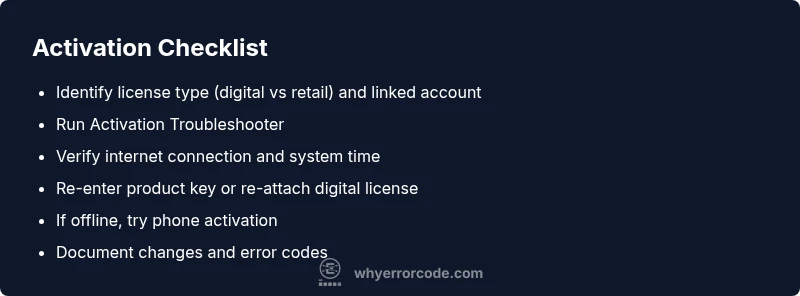
- Confirm the license type (digital license vs. retail) and whether it is linked to the right Microsoft account.
- Run Activation Troubleshooter and apply recommended fixes.
- Ensure internet connectivity and correct date/time settings.
- If the problem persists, consider phone activation or remote support.
Document the steps you’ve taken and any new error codes to inform future fixes and reduce downtime.
Steps
Estimated time: 20-40 minutes
- 1
Open Activation settings
Navigate to Settings > Update & Security > Activation and check current activation status.
Tip: Have your Windows edition and license details handy for quick checks. - 2
Run Activation Troubleshooter
Click Troubleshoot and let Windows scan for entitlement mismatches or network issues.
Tip: If the troubleshooter finds issues, apply the recommended fixes automatically. - 3
Sign in with Microsoft account
Make sure the device is linked to the Microsoft account that holds your license.
Tip: If you changed accounts, sign out and sign back in to ensure proper linkage. - 4
Re-enter product key or attach digital license
Enter a valid product key or verify the digital license is active on this device.
Tip: Keep the key and account details accessible for reference. - 5
Verify date/time and region
Check that the system clock, time zone, and region are correct.
Tip: Incorrect settings can block license validation even with a valid key. - 6
Check network and firewall
Ensure firewall or antivirus is not blocking activation traffic; temporarily disable if needed.
Tip: Re-enable protection after testing. - 7
If offline, use phone activation
Follow the on-screen prompts to activate by phone if a network path is unavailable.
Tip: Prepare your installation ID and reference numbers for the agent.
Diagnosis: Windows 10 reports activation error 0x87e10bc6 during startup or post hardware changes
Possible Causes
- highLicense mismatch or non-digital license not linked to Microsoft account
- highDigital entitlement not attached to device or account
- mediumOffline activation or network restrictions blocking activation servers
- lowHardware changes requiring re-activation after major motherboard or BIOS updates
Fixes
- easyRun Activation Troubleshooter in Settings
- easyConnect to internet and reattempt activation or sign in with Microsoft account
- easyRe-enter a valid product key or re-activate digital license
- mediumIf offline, use phone activation or contact your admin
Frequently Asked Questions
What does the error code 0x87e10bc6 mean in Windows activation?
This error indicates Windows activation failed to verify your license, typically due to license mismatch, digital entitlement issues, or online activation problems.
It means Windows can’t verify your license, usually because the license isn't linked correctly or the activation servers can't be reached.
Can I fix this myself without calling support?
Yes. Start with the Activation Troubleshooter, verify account linkage, re-enter a product key if available, and ensure you have an internet connection.
Yes—start with built-in troubleshooters and verify your license and account linkage.
What should I do if I can't access the Microsoft account that owns the license?
Try account recovery or contact your administrator if this is a corporate device; phone activation is sometimes available as a fallback.
If you can't access the owning account, use recovery options or contact admin, and consider phone activation where allowed.
Will resetting Windows fix the activation error?
Resetting Windows can preserve data in some cases but often is not required. Activation failures usually relate to licensing entitlements rather than OS integrity.
Resetting can help only in rare cases; usually licensing questions require troubleshooting rather than a reset.
Are there costs for activation help from a pro?
Professional support costs vary by region and scope. Remote guidance could range from about $50–$200 per incident; exact quotes depend on the provider.
Yes, professional help can cost time-based or fixed fees; expect regional variation in pricing.
Watch Video
Top Takeaways
- Verify license type and account linkage first
- Run Activation Troubleshooter before advanced steps
- Check internet and date/time settings
- Contact Microsoft support if self-service fixes fail