What is Windows error 0x80072f8f? Quick Fixes
Learn what Windows error code 0x80072f8f means, its common causes, and proven steps to diagnose and fix it quickly, including TLS issues, time sync, and network checks.


Windows error 0x80072f8f signals a secure-connection problem when contacting Microsoft services (like Windows Update). It usually stems from time/date mismatches, certificate validation issues, or blocked TLS traffic. The quickest path to a fix is to sync your clock, disable interfering VPNs/proxies, and run the built-in Windows Update troubleshooter. If the issue persists, proceed with the diagnostic flow and targeted repairs.
What is Windows error code 0x80072f8f?
The error 0x80072f8f is not a generic failure; it is a secure-connection problem that occurs when your device tries to reach Microsoft services, most commonly Windows Update. In practical terms, your PC cannot establish a trusted TLS/SSL channel with Microsoft servers due to clock drift, certificate validation hiccups, or blocked network traffic. Why Error Code explains that addressing the root cause—time synchronization, certificate trust, and network hygiene—is the fastest route to restoration. While the error might surface during updates, it can also appear when you launch Microsoft Store apps or services that require secure server communication. By understanding its meaning and the usual culprits, you can quickly triage the issue without unnecessary reinstallation or complex repairs.
Symptoms and triggers
You may see a Windows Update failure dialog with code 0x80072f8f, or notice related error entries in Event Viewer or the Reliability Monitor. Typical triggers include attempting to install updates, patch security vulnerabilities, or install apps from the Microsoft Store. A misconfigured clock, disabled TLS protocols, or a VPN/proxy that inspects encryption can also trigger the handshake failure. Recognize that the problem often sits at the network layer rather than the update package itself, which guides the fixes toward time, trust, and connectivity.
Quick wins to start resolving it
Start with simple, low-risk steps that remove common culprits:
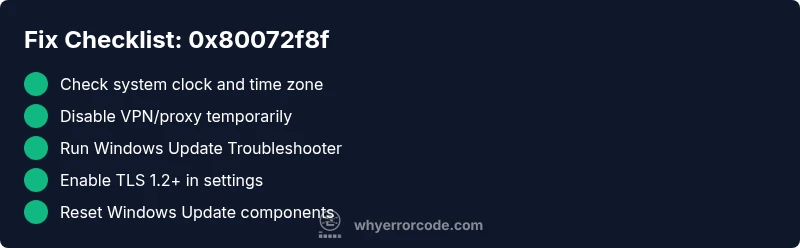
- Check date and time: Ensure the system clock is correct and set to automatic. TLS certificates rely on a valid clock, and a drift of even a few minutes can break validation.
- Verify time zone: Make sure the time zone matches your locale to prevent timestamp discrepancies.
- Disable VPN or proxies: Temporarily disconnect VPNs or proxies that could intercept TLS traffic and block the handshake.
- Run Windows Update Troubleshooter: Open Settings > Update & Security > Troubleshooter (or Troubleshoot in newer builds) and let Windows repair update components.
- Confirm TLS settings: Ensure TLS 1.2+ is enabled in Internet Options (Advanced tab) if your device relies on legacy settings.
- Pause security overlays: Temporarily disable antivirus or firewall features that scan TLS traffic if they cause interference.
If these quick wins don’t resolve the problem, proceed with the guided step-by-step fixes.
Step-by-step fix for the most common root cause
The most frequent scenario involves time sync and TLS handshake issues. Follow these steps:
- Open Date & time settings and turn on Set time automatically. If it’s already on, toggle it off, wait a moment, then turn it back on.
- Confirm the time zone is correct and matches your actual location.
- Reboot the computer to ensure clock changes take full effect.
- Run the Windows Update Troubleshooter to repair update components automatically.
- Temporarily disable VPNs, proxies, and any VPN-adjacent security tools that might affect TLS traffic.
- In Internet Options, enable TLS 1.2/1.3 under the Advanced tab and restart the browser or services.
- If updates still fail, reset Windows Update components using elevated Command Prompt commands (e.g., net stop wuauserv, net start wuauserv) and then retry.
Estimated time: 50–75 minutes. If you’re uncomfortable with command-line steps, skip to the assisted fixes or contact support.
Other possible causes and how to approach them
Beyond time and TLS, several other factors can trigger 0x80072f8f. Approach them methodically:
- Network security appliances: Corporate firewalls or SSL inspection can block TLS handshakes. Work with IT to bypass inspection for Windows Update URLs or add exceptions.
- Corrupted Windows Update data: Use DISM and SFC scans to repair system files that may disrupt secure communications.
- Outdated root certificates: Ensure your system’s root certificate store is up to date via Windows Update.
- DNS or proxy misconfigurations: Flush DNS, switch to a trusted DNS (like Google or Cloudflare), and bypass misconfigured proxies.
If you encounter persistent failure after addressing these, escalate to professional support with a documented diagnostic flow.
Safety, costs, and when to call a professional
Safety first: avoid aggressive registry edits or factory resets unless you have a validated backup. Self-help fixes are typically free and can resolve most occurrences. If you need a professional, expect costs to range from roughly $0–$50 for basic tooling and guidance, to $100–$250 for a technician performing deeper diagnostics or repair work. In enterprise environments, IT support or managed services may incur higher costs. The decision to hire a pro should consider data risk, downtime tolerance, and whether the fix involves network policy changes or credential restoration.
Prevention and best practices
To minimize future 0x80072f8f occurrences:
- Keep Windows and security certificates up to date.
- Maintain accurate system time automatically.
- Use trusted networks and avoid opaque VPNs or proxies that tamper with TLS traffic.
- Enable TLS 1.2+ and ensure modern cipher suites are supported.
- Regularly run the Windows Update Troubleshooter after major updates or configuration changes.
- Back up critical data before performing systemic repairs or network policy changes.
How to verify the fix and monitor
After applying fixes, verify success by:
- Running Windows Update and confirming successful completion without error 0x80072f8f.
- Opening the Microsoft Store to install an app to verify TLS connectivity.
- Checking Event Viewer for absence of TLS-related errors and verifying time synchronization events show a healthy clock.
- Rebooting and repeating a lightweight update test to ensure no regression occurred.
Steps
Estimated time: 50-75 minutes
- 1
Check date and time
Open Settings > Time & language > Date & time. Ensure Set time automatically is enabled and the time zone is correct. If needed, manually adjust the clock, then save changes.
Tip: A drift as small as a few minutes can trigger TLS handshake failures. - 2
Test network and disable blockers
Disconnect any VPNs or proxies that could intercept TLS. Temporarily disable firewall or security software if you suspect TLS inspection is causing issues.
Tip: Re-enable protections after testing to avoid exposure. - 3
Run the Windows Update Troubleshooter
Go to Settings > Update & Security > Troubleshooter and run the Windows Update troubleshooter. Apply any recommended repairs and reboot if prompted.
Tip: Run as administrator if prompted for elevated privileges. - 4
Check TLS settings
In Internet Options (Control Panel), ensure TLS 1.2/1.3 are enabled under the Advanced tab. Apply changes and restart affected services.
Tip: Some corporate environments require group policy adjustments; consult IT if needed. - 5
Reset Windows Update components
Open an elevated Command Prompt and run a sequence to stop services, rename update folders, and restart services (e.g., net stop wuauserv, net stop cryptSvc, etc.). Then restart the computer.
Tip: Keep note of the commands to avoid missteps. - 6
Test and verify
After applying fixes, run Windows Update again and check for success. If the error persists, capture logs and escalate with professional help.
Tip: Document exact error messages and steps taken for faster support.
Diagnosis: Windows Update or Microsoft Store operations fail with error 0x80072f8f
Possible Causes
- highSystem clock drift or incorrect time zone
- highTLS/SSL handshake blocked by VPN, proxy, or firewall
- highTLS settings or certificate trust issues
- mediumCorrupted Windows Update components or services
- lowOutdated root certificates or expired certificates in store
Fixes
- easySync date/time and correct time zone
- easyDisable VPN/proxy and temporarily adjust firewall rules
- easyRun Windows Update Troubleshooter and repair components
- mediumReset Windows Update components via command prompt and services
- easyVerify TLS settings and update root certificates
Frequently Asked Questions
What causes Windows error code 0x80072f8f?
Common causes include clock drift, TLS/SSL handshake failures, VPN/proxy interference, and corrupted Windows Update components. Verifying time settings and network configuration usually resolves the issue.
0x80072f8f is usually caused by clock problems, TLS issues, or network blockers. Fix the time, check TLS, and test your network.
Can I fix this without reinstalling Windows?
Yes. Most cases resolve with time and TLS fixes, a troubleshooter run, and a reset of Windows Update components. Reinstalling Windows is rarely necessary unless broader system corruption is involved.
Usually you can fix it without reinstalling Windows by checking time, TLS, and updating components.
Is this problem related to TLS 1.2 settings?
Yes. Enabling TLS 1.2+ in the system and browser settings is commonly required for successful secure connections to Microsoft services.
TLS 1.2 or newer needs to be enabled for a secure connection to Microsoft servers.
Should I contact support for every occurrence?
If the error persists after applying the standard fixes, or if you’re in a managed network with strict security, it’s wise to contact professional support. They can inspect logs and network policy configurations.
If basic fixes don’t work, or you’re on a corporate network, consider reaching out to support.
Does antivirus software affect this error?
Yes. Some antivirus or firewall suites inspect TLS traffic and can block secure handshakes. Temporarily disabling them for testing can help identify the cause.
Security software can block TLS handshakes; test with it temporarily disabled.
What is the fastest way to verify the fix worked?
Run Windows Update again, attempt a Microsoft Store app install, and check Event Viewer for TLS-related errors to confirm the issue is resolved.
Try an update and a Store install to confirm the fix, and check logs if it fails again.
Watch Video
Top Takeaways
- Identify clock, TLS, or network issues as the primary causes.
- Start with quick wins before deeper repairs.
- Use the Windows Update Troubleshooter to automate fixes.
- Reset update components if problems persist.
- Seek professional help for persistent failures or complex network changes.