Windows 7 error code 0x80072efe: Urgent Fix and Diagnostics
A practical, urgent guide to diagnosing and fixing Windows 7 error code 0x80072efe. Learn symptoms, causes, step-by-step fixes, safety tips, and professional help guidance for fast recovery.


What it means: Windows 7 error code 0x80072efe signals a failed connection to Windows Update servers, usually caused by network issues, DNS problems, or service interference. Quick fix: verify internet access, correct system time, temporarily disable conflicting firewall or VPN, run the built-in Windows Update troubleshooter, and reset Windows Update components if needed.
What the error code means in plain language
The Windows 7 error code 0x80072efe is not a single broken file; it is a connectivity signal. It appears when the Windows Update client cannot reach the update servers, typically due to network issues, DNS resolution problems, or software that blocks or throttles the connection. In practical terms, you may see the update check stall, fail, or return with 0x80072efe after several attempts. This isn’t a definitive hardware fault; it’s an environmental problem that interrupts the update process. Recognizing this distinction helps you triage quickly: start with basic network sanity checks, verify the system clock, and rule out common blockers before diving into more complex components. The Why Error Code team has seen this pattern countless times, and the fix almost always begins with infrastructure rather than firmware or driver changes.
Symptoms and impact of 0x80072efe
Common symptoms include updates hanging at a percentage, recurring error notifications, and failed attempts to install updates. Users may notice slower system performance during the update cycle or repeated error popups with 0x80072efe in the Windows Update history. In enterprise environments, this can affect multiple machines and disrupt security patching, leaving systems exposed. While Windows 7 is older, these symptoms align with a connectivity fault rather than a corrupted update package. Understanding the scope helps determine whether you can resolve the issue on a single PC or if a broader network check is required.
Quick checks you can perform today
Start with fast, non-destructive checks: verify your internet connection is stable, test access to a known site, and confirm the date and time are correct (including time zone). Ensure DNS is resolving correctly by pinging update servers or using a public DNS like Google DNS. Temporarily disable VPNs or proxies and pause any firewall rules that could be blocking outbound connections. Check that the Windows Update service is running and not set to manual or disabled. These steps can often clear 0x80072efe without deeper repairs.
Diagnostic flow: symptoms → causes → fixes (narrative)
When 0x80072efe appears, the most probable causes are network instability or DNS issues, followed by software interference (firewall, VPN, or security tools). Less common but possible are outdated TLS settings or corrupted update caches. Start with the easiest fixes: confirm connectivity, sync the clock, and run the Windows Update Troubleshooter. If the problem persists, proceed to component resets (Windows Update components, BITS, cryptographic services) and, as a last resort, check for broader network policy changes or professional help.
Step-by-step fix for the most common cause
This section focuses on the typical root cause: connectivity problems blocking update servers. Follow these steps in order:
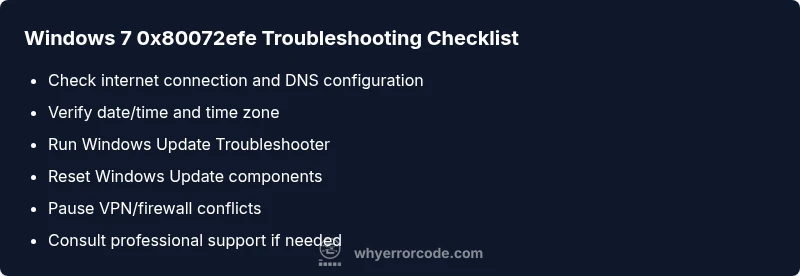
- Ensure a stable internet connection and proper DNS resolution. 2) Verify correct date/time settings. 3) Run the Windows Update Troubleshooter. 4) Reset Windows Update components and the relevant services. 5) Temporarily disable conflicting antivirus or firewall rules. 6) If needed, enable TLS 1.0/1.1 in Internet Options for legacy Windows Update paths. Tip: Back up important data before making substantial configuration changes. Estimated time: 30–60 minutes.
Other possible causes and fixes
If the basic connectivity checks pass but the error persists, investigate other factors. Misconfigured DNS or proxy settings can block update calls even when the internet seems available. A corrupted Windows Update cache or a stale SoftwareDistribution folder can cause repeated failures. Root certificates and older TLS protocols may also prevent secure connections to update servers. For each cause, apply targeted fixes: adjust DNS/proxy, clear the update cache, re-register update components, and ensure compatibility with Windows 7’s security stack. Maintain a checklist to avoid overlooking parallel issues in corporate networks or multi-user machines.
Safety, support, and cost considerations
Safety first: avoid permanently disabling security tools or essential services. When in doubt, pause high-risk changes and escalate to a professional. Cost-wise, basic DIY repairs cost nothing upfront, while professional IT support for Windows Update issues can range from roughly $50 to $300 depending on complexity and location. Some organizations may incur additional network diagnostics costs if the issue spans multiple machines. If the fix extends beyond personal devices, consider staged rollout testing to minimize business impact.
Proactive maintenance to prevent 0x80072efe recurrence
To reduce future occurrences, implement a lightweight maintenance routine: keep Windows 7 up to date with official security patches (where possible), monitor network health, validate DNS settings, and keep security software updated without overly aggressive blocking rules. Establish a small troubleshooting playbook for your team: verify connectivity first, run the built-in troubleshooter, and document outcomes. Regularly review event logs for recurring WinHttp or DNS errors and adjust firewall rules accordingly. This proactive approach minimizes downtime and speeds future remediation.
Steps
Estimated time: 30-60 minutes
- 1
Check network and DNS
Confirm your internet connection is stable and that DNS is resolving update servers correctly. Use command prompts to ping updates.microsoft.com and flush DNS if needed.
Tip: Pro tip: use a wired connection if possible for stability. - 2
Verify date/time settings
Open Date and Time settings, ensure automatic time synchronization is enabled, and set the correct time zone. A skewed clock can block secure connections to update servers.
Tip: Pro tip: temporarily set time to an accurate public time server. - 3
Run Windows Update Troubleshooter
Launch the built-in troubleshooter for Windows Update and apply recommended fixes. Reboot if prompted and re-check for updates.
Tip: Pro tip: run troubleshooter after you’ve cleared DNS and time settings. - 4
Reset Windows Update components
Stop the Windows Update service, rename or delete the SoftwareDistribution folder, reset BITS and cryptographic services, and restart the service.
Tip: Pro tip: run these commands in an elevated command prompt. - 5
Test with security software disabled
Temporarily disable antivirus and firewall features that could block outbound connections to update servers. Enable them again after testing.
Tip: Pro tip: use passive monitoring instead of full disablement to minimize risk. - 6
Check TLS and legacy support
For older Windows Update paths, verify that TLS 1.0/1.1 is enabled in Internet Options. Some update servers require legacy protocols.
Tip: Pro tip: only enable legacy TLS temporarily for troubleshooting. - 7
Assess broader network policies
If you’re on a corporate network, confirm group policy or firewall rules aren’t blocking Windows Update endpoints. Consider a controlled test on a single machine.
Tip: Pro tip: document policy changes for rollback.
Diagnosis: Windows 7 update fails with 0x80072efe during update attempts
Possible Causes
- highIntermittent internet connection or DNS resolution issues
- mediumIncorrect system date/time
- mediumVPN, proxy, or firewall interfering with Windows Update
- lowOutdated Windows Update components or corrupted cache
Fixes
- easyEnsure stable internet connection and correct DNS configuration
- easyVerify date/time settings and re-sync with time servers
- easyDisable VPN/proxy temporarily and adjust firewall rules
- hardReset Windows Update components and clear the SoftwareDistribution cache
Frequently Asked Questions
What causes 0x80072efe on Windows 7?
The error is typically caused by connectivity issues such as unstable internet, DNS problems, or software blocks on Windows Update. Less commonly, corrupted update components or outdated TLS settings can contribute. A systematic check often resolves it without reinstalling Windows.
Usually, it’s a connectivity problem. Check your network, DNS, and ensure nothing blocks Windows Update before exploring deeper fixes.
Is this error harmful to my PC?
Not inherently harmful to hardware. It indicates update connectivity issues that prevent security patches from applying. Prolonged failures can leave the system less protected, so timely resolution is important.
It’s not a hardware failure, but it can leave your system unpatched if not fixed.
Can I fix this myself without reinstalling Windows?
Yes. Most users can fix 0x80072efe with network checks, a troubleshooter run, and a reset of Windows Update components. Reinstalling Windows is rarely necessary for this issue.
Absolutely. Start with network checks and the built-in troubleshooter before considering reinstall options.
Should I upgrade from Windows 7?
Upgrading beyond Windows 7 is strongly advised for security and compatibility. While this guide focuses on 0x80072efe, moving to a supported version reduces future update problems and aligns with modern security standards.
Upgrading is recommended for security and ongoing support.
How long does the fix typically take?
For most users, the initial checks and troubleshooting take 20–40 minutes. A full reset of Windows Update components can extend to 60 minutes. If a professional helps, expect additional time based on scope.
Usually under an hour for DIY steps, longer if you involve a technician.
Does this affect other Windows versions’ updates?
The specific 0x80072efe error relates to Windows Update connectivity and TLS settings on Windows 7. Other versions have their own codes but can experience similar connectivity issues under the right conditions.
Other versions have their own codes, but connectivity problems can still be a factor.
Watch Video
Top Takeaways
- Identify it as a connectivity error, not hardware failure.
- Check internet, time, and DNS before deeper fixes.
- Run the Windows Update Troubleshooter for quick wins.
- Reset Update components if needed and consider professional help.
- Practice proactive maintenance to prevent future 0x80072efe occurrences.